La plupart des gens tapent mal — et ne le savent pas
Vous tapez depuis des années. Probablement des décennies. Il est donc facile de supposer que vous le faites correctement.
Mais la frappe est l'une de ces compétences où la pratique seule ne crée pas une bonne technique. Elle renforce simplement quelle que soit l'habitude avec laquelle vous avez commencé. Et la plupart des gens ont commencé sans aucune instruction.
Le résultat est un ensemble d'erreurs profondément ancrées qui plafonnent votre vitesse, nuisent à votre précision et dans certains cas causent de vraies tensions physiques avec le temps.
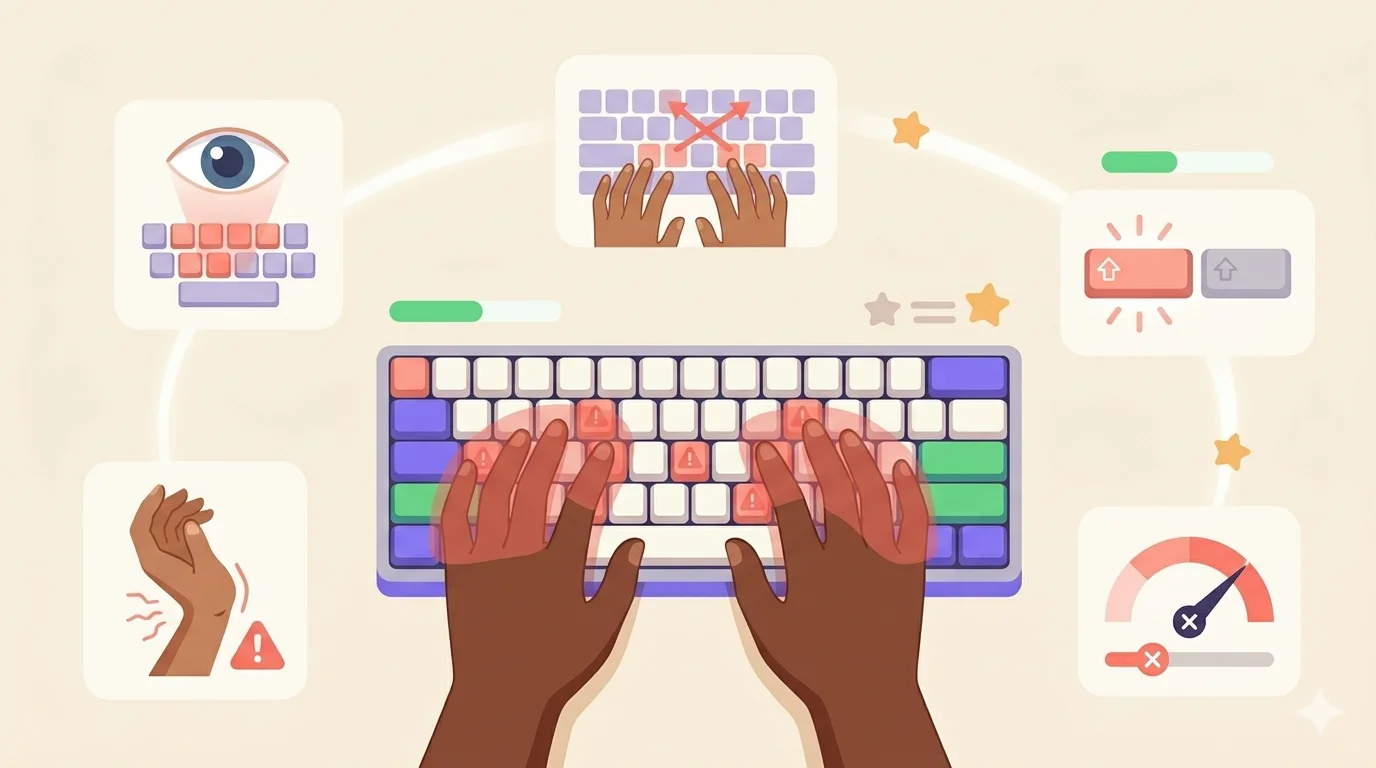
Voici les cinq plus courantes, et ce qu'il faut faire pour chacune.
Erreur 1 : Regarder le clavier en tapant
C'est l'erreur de frappe la plus répandue et la plus difficile à briser.
Quand vous regardez le clavier, vous faites deux choses à la fois : taper et lire. Vos yeux se déplacent constamment entre l'écran et les touches. Cela interrompt votre lecture de ce que vous avez écrit, brise votre fil de pensée et empêche vos doigts de jamais développer une vraie mémoire musculaire.
La dactylographie fonctionne parce que vos doigts apprennent les positions des touches si soigneusement que regarder devient inutile, et il existe des exercices concrets pour perdre l'habitude de regarder en bas. Mais cette mémoire musculaire ne se développe que si vous vous forcez à arrêter de regarder.
Comment le corriger :
Arrêtez de regarder. Complètement.
Placez vos doigts sur la rangée de base et ne regardez pas le clavier, même quand vous faites des erreurs. Les premiers jours seront lents et frustrants. C'est le processus qui fonctionne.
Si vous ne pouvez pas résister à regarder, mettez un morceau de papier ou un petit tissu sur vos mains. Ça semble extrême. Ça fonctionne.
Erreur 2 : Utiliser les mauvais doigts pour les mauvaises touches
La plupart des dactylos autodidactes ont leurs propres assignations de doigts idiosyncratiques. Ces raccourcis se développent souvent parce que personne n'a jamais expliqué quel doigt est censé appuyer sur quelle touche.
L'assignation standard des doigts existe pour une raison : chaque doigt est responsable d'une colonne verticale de touches qui minimise le mouvement depuis les huit touches de la rangée de base où reposent vos mains.
Comment le corriger :
Apprenez la carte correcte des doigts et arrêtez de faire des exceptions.
- Auriculaire gauche : Q, A, Z
- Annulaire gauche : W, S, X
- Majeur gauche : E, D, C
- Index gauche : R, F, V, T, G, B
- Index droit : Y, H, N, U, J, M
- Majeur droit : I, K, ,
- Annulaire droit : O, L, .
- Auriculaire droit : P, ;, /
Les deux touches que les gens se trompent le plus souvent sont B (index gauche, pas droit) et Y (index droit, pas gauche). Corrigez-les d'abord.
Erreur 3 : Utiliser la mauvaise touche Shift
C'est subtil mais étonnamment courant. La plupart des gens utilisent toujours la même touche Shift — généralement la gauche — quelle que soit la main qui tape la lettre.
Technique correcte : utilisez la touche Shift opposée à la lettre que vous capitalisez. Si vous mettez en majuscule une lettre à droite du clavier, votre auriculaire gauche maintient Shift. Si vous mettez en majuscule une lettre à gauche, votre auriculaire droit maintient Shift.
Si la main gauche essaie de tenir Shift et de taper une lettre en même temps, l'un de ces doigts fait deux travaux. Votre vitesse chute, votre précision chute.
Comment le corriger :
Pratiquez la capitalisation délibérément pendant quelques séances. Choisissez une liste de mots à casse mixte et tapez-les lentement, en choisissant consciemment la bonne touche Shift chaque fois. L'habitude prend quelques jours à se former, mais une fois là, elle devient automatique.
Erreur 4 : Prioriser la vitesse sur la précision
C'est l'erreur qui crée le plus de frustration, parce qu'elle ressemble à du progrès alors qu'elle va en réalité à reculons.
Quand vous poussez votre vitesse de frappe au-delà de ce que vos doigts peuvent gérer de manière fiable, vous faites plus d'erreurs. Puis vous vous arrêtez pour corriger ces erreurs. Le résultat net est que vous finissez plus lent que quelqu'un qui a tapé soigneusement à une vitesse plus basse.
Il y a un principe bien établi dans l'apprentissage moteur : lent est fluide, fluide est rapide. L'argument en faveur de la précision avant la vitesse explique pourquoi le calcul favorise le dactylographe soigneux.
Comment le corriger :
Fixez un plancher de précision à 95% et ne vous laissez pas aller plus vite que ce seuil le permet. Si vous faites plus d'1 erreur toutes les 20 frappes, ralentissez. Votre vitesse rattrapera votre précision plus vite que vous ne l'attendez.
Erreur 5 : Poignets tendus et mauvaise posture
Celui-ci n'apparaît pas dans votre MPM. Il apparaît dans vos poignets après un an, ou votre cou après cinq.
La plupart des gens tapent avec leurs poignets posés sur le bureau, pliés vers le haut en direction du clavier. Cela met une pression soutenue sur les tendons et comprime le canal carpien, ce qu'un poste de travail ergonomique bien réglé est censé éviter.
Comment le corriger :
Vos poignets doivent flotter, pas reposer. Gardez-les au niveau ou légèrement sous la ligne du clavier, pas pliés vers le haut.
Configurez votre espace de travail correctement :
- Clavier à une hauteur où vos avant-bras sont à peu près parallèles au sol
- Moniteur au niveau des yeux, à environ la longueur d'un bras
- Pieds à plat sur le sol, dos soutenu
- Coudes à environ 90 degrés
Le schéma derrière les cinq erreurs
Remarquez quelque chose : aucune de ces erreurs n'est liée au talent brut. Ce sont toutes des problèmes de technique qui se sont développés parce que personne ne vous a donné de bonne instruction au départ.
C'est l'aspect frustrant. Des années de pratique quotidienne peuvent les rendre plus difficiles à corriger, parce que les mauvaises habitudes sont profondément ancrées. Mais c'est aussi l'aspect encourageant — ce sont des problèmes solubles.
Choisissez l'erreur qui résonne le plus avec votre situation actuelle. Travaillez uniquement là-dessus pendant deux semaines. Puis passez à la suivante.
Si vous préférez que les corrections soient intégrées à l'exercice plutôt que d'avoir à y penser vous-même, Typiq est un logiciel de dactylographie qui affiche le bon doigt pour chaque touche pendant que vous tapez et fait passer la précision avant la vitesse. Il fonctionne hors ligne sur Mac, Windows et Linux, coûte 22,99 € une seule fois sans abonnement, et un essai gratuit précède l'achat.
Questions fréquentes
Combien de temps faut-il pour briser une mauvaise habitude de frappe ? La plupart des corrections de technique prennent 2 à 4 semaines de pratique constante pour s'ancrer. 15 minutes par jour bat une session de 2 heures une fois par semaine par une marge significative.
Devrais-je réapprendre à taper de zéro si ma technique est mauvaise ? Pas nécessairement. Si vous êtes un chasseur-picoreur sans conscience de la rangée de base, commencer depuis le début avec un programme structuré est le chemin le plus rapide. Si vous tapez avec contact mais avez des mauvaises habitudes spécifiques, la correction ciblée est plus rapide.
Puis-je corriger ces erreurs seul sans logiciel ? Vous pouvez corriger la posture et l'assignation des doigts seul avec discipline. Pour le feedback de vitesse et de précision, le logiciel aide considérablement.
Le type de clavier affecte-t-il la technique de frappe ? Un peu. Les claviers mécaniques donnent un feedback tactile plus clair. Mais la technique est la technique — les fondamentaux du placement des doigts s'appliquent quel que soit le clavier utilisé.
À quel point devrais-je arrêter de m'inquiéter de la technique et juste taper ? Quand vous pouvez atteindre votre vitesse cible à 95%+ de précision avec la technique correcte à dix doigts sans y penser consciemment. Jusque-là, la technique mérite encore un peu d'attention.